
Meta Business Manager Verification and WhatsApp Business API Guide
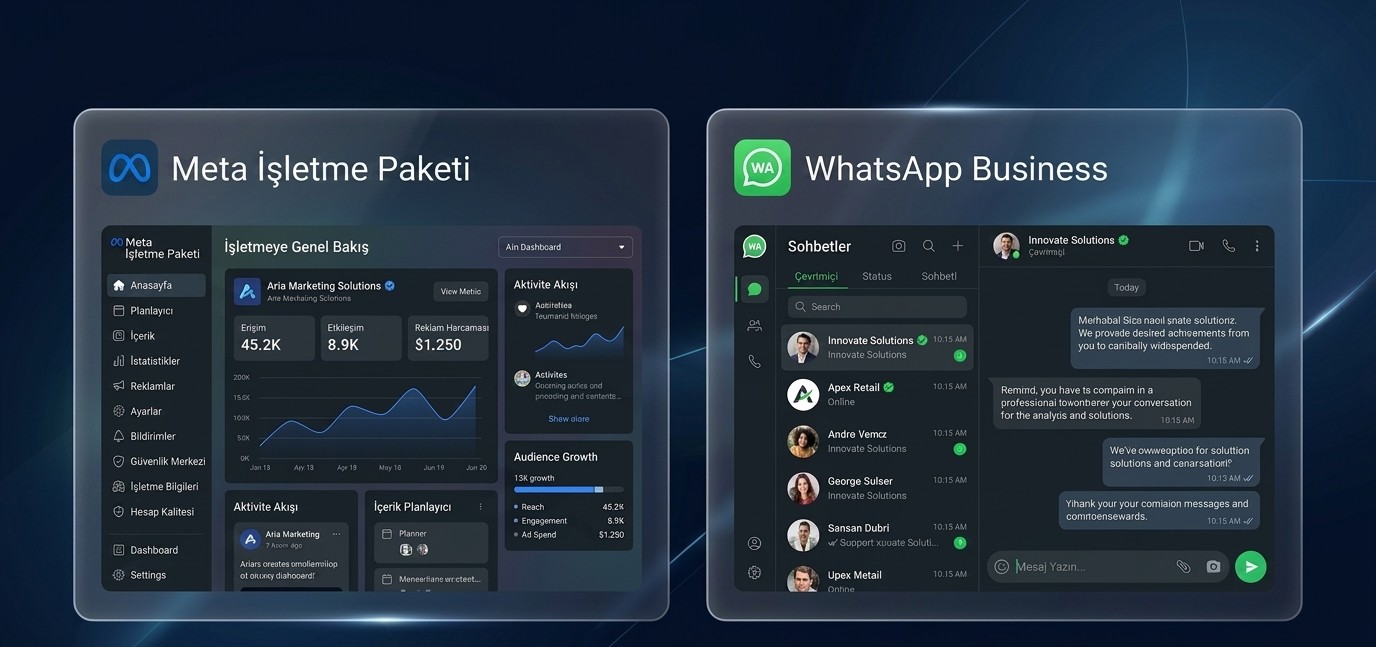
In today's digital commerce ecosystem, the speed, quality, and reliability of customer communication directly define a business's success. With billions of active users worldwide, WhatsApp has evolved from a simple messaging app into a core channel for sales, marketing, and customer support. The WhatsApp Business API, which enables businesses to communicate with their customers in a scalable and automated manner, sits right at the heart of this transformation.
The key to utilizing the full potential of the WhatsApp Business API with higher messaging limits and uninterrupted service is completing Business Verification within Meta Business Manager. Verifying your business not only proves your identity within the Meta ecosystem but also certifies your brand’s digital credibility.
In this comprehensive guide, we will explore how to complete Meta Business Manager verification, why this process is critically important, the risks faced by unverified accounts, strategies to minimize ban risks during WhatsApp bulk messaging campaigns, and methods to scale your messaging limits in detail.
1. What is Meta Business Manager?
Meta Business Manager is an enterprise management platform that allows you to manage your Facebook, Instagram, and WhatsApp accounts, ad accounts, data sources, and access permissions from a single, secure hub. It enables businesses to separate their digital assets from personal profiles and control them within a professional environment.
Its Relationship with WhatsApp Business API
The standard WhatsApp Business app is designed for small-scale communication managed via a single smartphone or a limited number of web browsers. However, when you need to reach thousands of customers, set up automated response systems, integrate AI-powered chatbots, and manage multiple support agents through a single phone line, the WhatsApp Business API comes into play.
The WhatsApp Business API does not have a native user interface. Instead, this infrastructure connects Meta's cloud servers directly to your company's CRM or messaging software. Setting up this API infrastructure, managing phone numbers, and submitting message templates for approval are all executed directly through the Meta Business Manager dashboard. Business Manager serves as the legal, administrative, and technical control center for the WhatsApp Business API.
Key Differences from a Personal Facebook Account
Historically confused with managing a personal Facebook account's "Page" or "Ad Account," Business Manager operates independently from personal assets. While standard Facebook Business usage does not require corporate identity verification, Meta Business Manager allows you to register your official corporate structure, tax identification number, legal company title, and authorized staff into the system.
How Does Meta's Verification System Work?
Meta's verification system is a multi-layered security mechanism developed to filter out malicious actors, fraudsters, and impersonator accounts across the platform. The system cross-checks whether a business legally exists in official registries, verifies submitted documentation, checks domain and company title alignment, and tests communication channels using a combination of automated algorithms and human reviewers.
2. What is Business Verification?
Business Verification is the official procedure where Meta confirms that a Business Portfolio account is backed by a legally registered, operational, and active commercial entity using official documentation.
What is Business Verification and Why Does It Exist?
Business Verification is the process of proving your company’s legal existence to Meta. Meta is obligated to protect user safety. When a user receives a message from a brand via WhatsApp, Meta wants to ensure that the message genuinely originates from that brand. This procedure is designed to prevent phishing and brand impersonation in the digital space.
Connection to Trust Score
Within Meta’s infrastructure, every Business Manager account and linked WhatsApp Business API phone number operates with an internal Trust Score. A verified business account starts directly in the "High Reliability" tier within Meta’s systems. Accounts with high trust scores encounter fewer messaging restrictions, achieve faster template approvals, and are subjected to an inquiry process rather than immediate account suspension in the event of user flags or complaints.
Fraud Prevention and Distinguishing Real Businesses
Phishing and identity theft attacks remain major security threats in the digital world. Malicious entities often try to misuse established brand names and logos to exploit users. Meta prevents fraud by withholding broad messaging capabilities from unauthenticated accounts. Through official checks involving trade registries, tax certificates, and corporate domain validations, only legitimate businesses bearing legal responsibility receive verification.
3. How to Verify Your Meta Business Account?
Verifying your Meta Business Manager account is a systematic procedure once you have prepared the required documentation accurately. Follow the steps below sequentially to complete the verification process successfully.
[Business Portfolio Creation]
              │
              ▼
   [Security Settings (2FA)]
              │
              ▼
 [Enter Official Business Info]
              │
              ▼
[Upload Official Documents (Tax Cert, etc.)]
              │
              ▼
[Domain & Email / SMS Verification]
              │
              ▼
    [Meta Review Process]
Step 1: Business Portfolio Creation & Setup
To initiate the verification process, you first need a Meta Business Manager account and a Business Portfolio created within it.
Go to
business.facebook.comhttps://business.facebook.com/ and log in with your corporate Facebook account.Click Create Account, then enter your business name, your name, and your corporate email address.
Click the confirmation link sent to your email address to activate your account.
Step 2: Configuring Security Settings
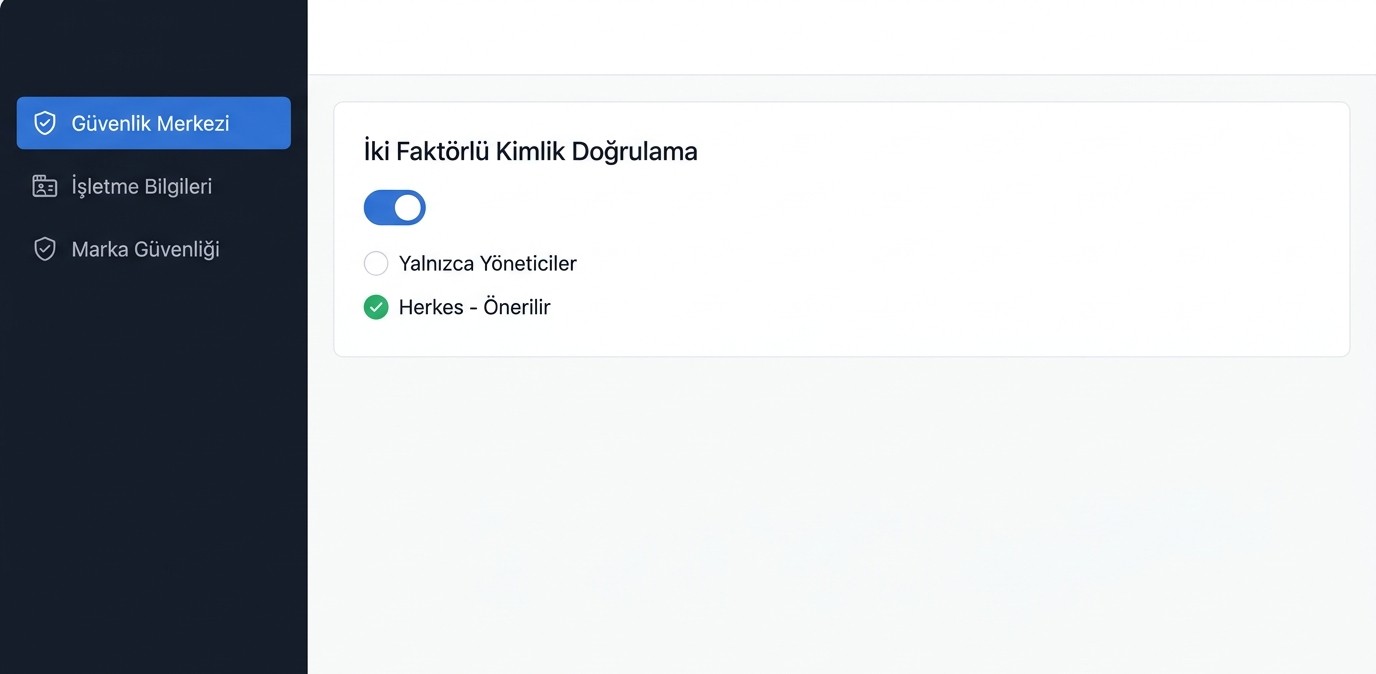
Meta does not process verification requests for accounts with low security levels. To activate the verification button, you must enforce two-factor authentication (2FA) in the security section.
Log into your Business Manager dashboard.
Click Security Center in the left sidebar menu.
Set Two-Factor Authentication to "Admins Only" or preferably "Everyone".
Step 3: Entering Official Business Details
The details entered under the Business Information tab must match your legal documents exactly. Minor spelling mistakes or address mismatches can result in an immediate rejection.
Legal Business Name: Enter the exact legal name shown on your tax document or official trade registry. (e.g., Softcand Software and Consulting LLC)
Address: The address must match your official document down to street details, building number, and postal code.
Business Phone Number: Enter an active, reachable corporate phone number.
Website: Enter your active corporate website URL, which must feature privacy policies and official contact details.
Step 4: Preparing and Uploading Official Documents
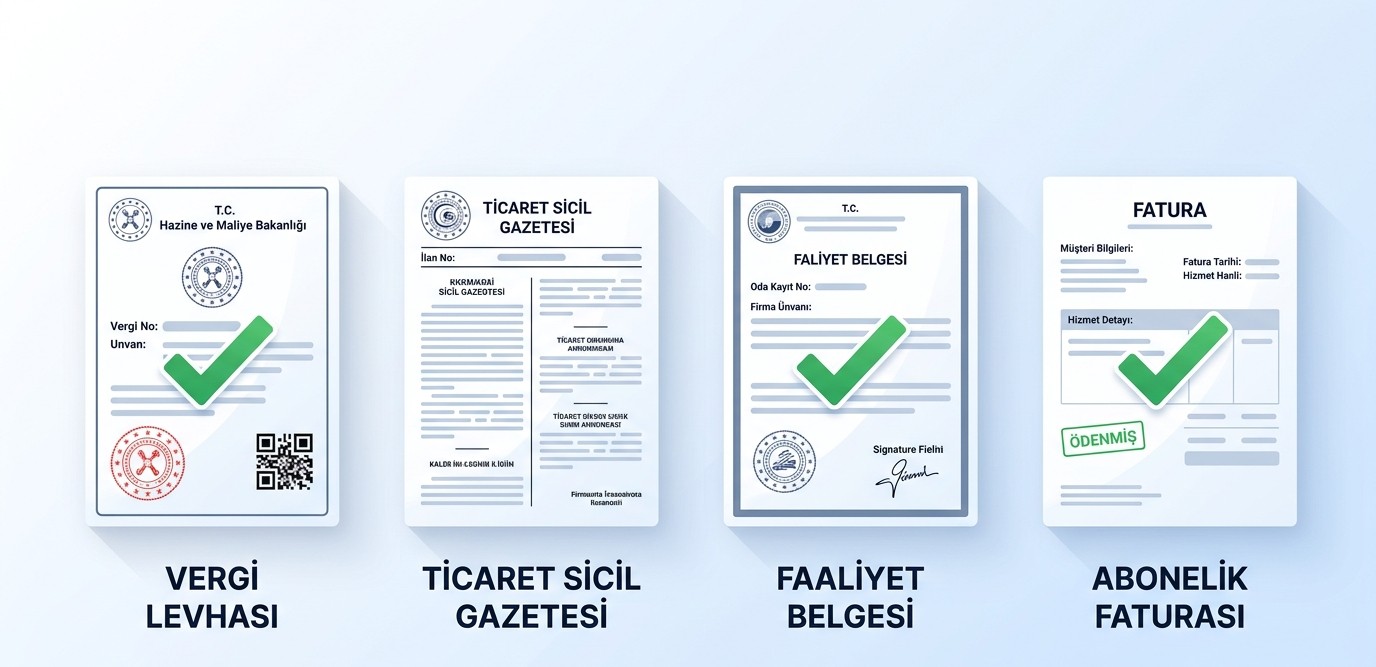
Meta requests official government-issued documentation to confirm your company's physical and legal presence. Acceptable primary documents include:
Tax Certificate: An official, barcoded tax registration certificate for the current year.
Trade Registry Gazette: Official documentation clearly displaying your company title, registered address, and ownership structure.
Certificate of Activity / Chamber Registration: An official document issued by your local Chamber of Commerce within the last 6 months.
Utility Bill: An electricity, water, gas, or landline/internet bill displaying your exact legal company name and address.
Step 5: Phone and Domain Verification
After document upload, Meta verifies your connection to the business through official communication channels.
Domain Verification: Under the Brand Safety section in Business Manager, add your corporate domain. Verify ownership via DNS TXT record or HTML file upload.
Email Verification: A confirmation code will be sent to an email address sharing your website's domain extension (
name@yourcompany.com). Generic email providers (Gmail, Yahoo, etc.) are rejected.SMS / Phone Call Verification: Alternatively, you can complete verification by receiving an SMS code or automated voice call on your registered business line.
Step 6: Meta Review Process & Handling Rejections
Once all details and documents are submitted, your account enters review status.
Average Approval Time: Reviews typically take 24 to 72 hours. During high-volume periods, this may extend up to 7 business days.
Handling Rejections: If your application is rejected, do not panic. Meta provides specific rejection reasons within the panel—usually due to name mismatches, address inconsistencies, or unreadable documents. Fix the noted discrepancies, update your documents, and submit a "Re-review Request."
4. Why is Business Verification Essential?
Many companies planning to use the WhatsApp Business API wonder whether verification is strictly mandatory. While Meta offers a restricted trial mode for unverified accounts, formal verification is required for long-term operational success.
┌──────────────────────────────────────────────────────────┐
│                   BUSINESS VERIFICATION                  │
└────────────────────────────┬─────────────────────────────┘
                             │
       ┌─────────────────────┼─────────────────────┐
       ▼                     ▼                     ▼
┌──────────────┐      ┌──────────────┐      ┌──────────────┐
│  Trust &     │      │ Customer &   │      │ Higher       │
│  Brand       │      │ Data         │      │ Messaging    │
│  Reputation  │      │ Security     │      │ Limits       │
└──────────────┘      └──────────────┘      └──────────────┘
Building Trust & Brand Reputation
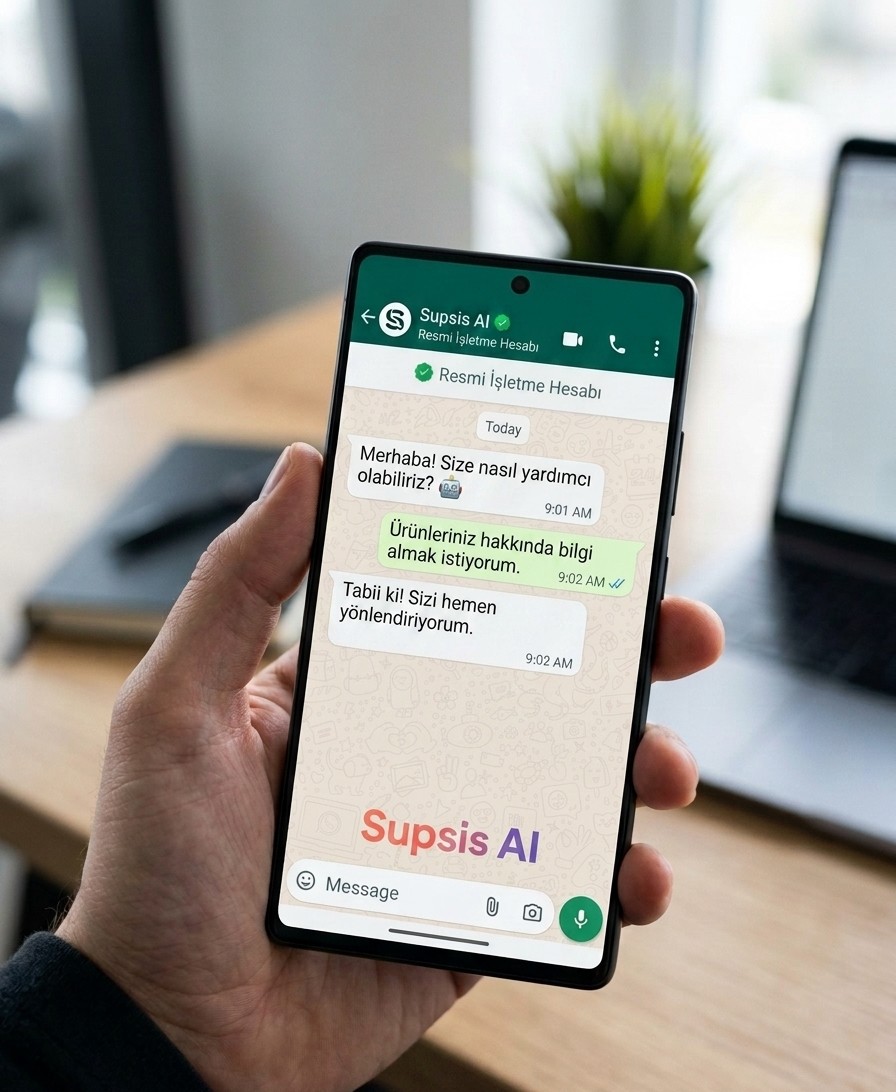
Customers are naturally cautious when receiving messages from unknown or unverified numbers. When using a verified Meta account for WhatsApp communication, your business profile displays your official brand name, logo, physical address, and verified badge. This transparency significantly improves message open rates and user engagement.
Relationship with the Green Tick Badge
The Official Business Account (Green Tick) badge represents the highest level of verification on WhatsApp. When granted, your official brand name is displayed in the user’s chat list even if your number is not saved in their contacts.
A crucial point to remember: You cannot apply for a Green Tick without completing Meta Business Verification first. Business Verification is an absolute prerequisite. However, completing verification does not guarantee an automatic Green Tick, as Meta separately evaluates brand fame and media presence.
Technical Advantages for API Usage
Unlimited Template Creation: Verified accounts can build and submit messaging templates without restriction.
Higher Messaging Limits: While unverified accounts are capped at reaching 250 unique users per day, verified accounts can scale up to 1,000, 10,000, 100,000, or unlimited daily messages.
5. Risks of Using Unverified Accounts
Businesses that delay or ignore the verification process often experience operational bottlenecks during critical campaign periods.
Continuous Review Delays: Every new message template or campaign submitted by unverified accounts undergoes lengthy manual checks by Meta algorithms.
Sudden Messaging Bans: Due to low trust scores, a small spike in user blocks or spam reports can trigger immediate account restrictions.
Stagnant Messaging Limits: Regardless of your marketing budget or customer database size, unverified accounts cannot exceed the 250 daily message cap.
High-Risk Profile & Permanent Bans: Unverified accounts are categorized as high-risk by automated security systems, increasing the likelihood of unappealable permanent bans for minor policy oversights.
6. Importance of Account Verification in Bulk Messaging
Bulk messaging represents a highly effective marketing tool for e-commerce, education, and corporate service sectors. However, sending broadcast messages via the WhatsApp Business API operates under vastly different rules than sending group messages via standard WhatsApp apps.
WhatsApp Business API & Message Template Types
To initiate outbound conversations with users via the API, businesses must use pre-approved Meta message templates. Meta divides templates into three primary categories:
Template TypeDescriptionExample ScenarioMarketing TemplatePromotional messages, discounts, retargeting campaigns, and product announcements."Weekend Sale: Enjoy 30% off across all categories!"Utility TemplateTransactional updates triggered by a specific user action or request."Your order has been shipped. Tracking ID: 12345"Authentication TemplateSecurity verification codes, one-time passwords (OTP), and account logins."Your secure login verification code is: 859403"
Meta Quality Rating and Delivery Rates
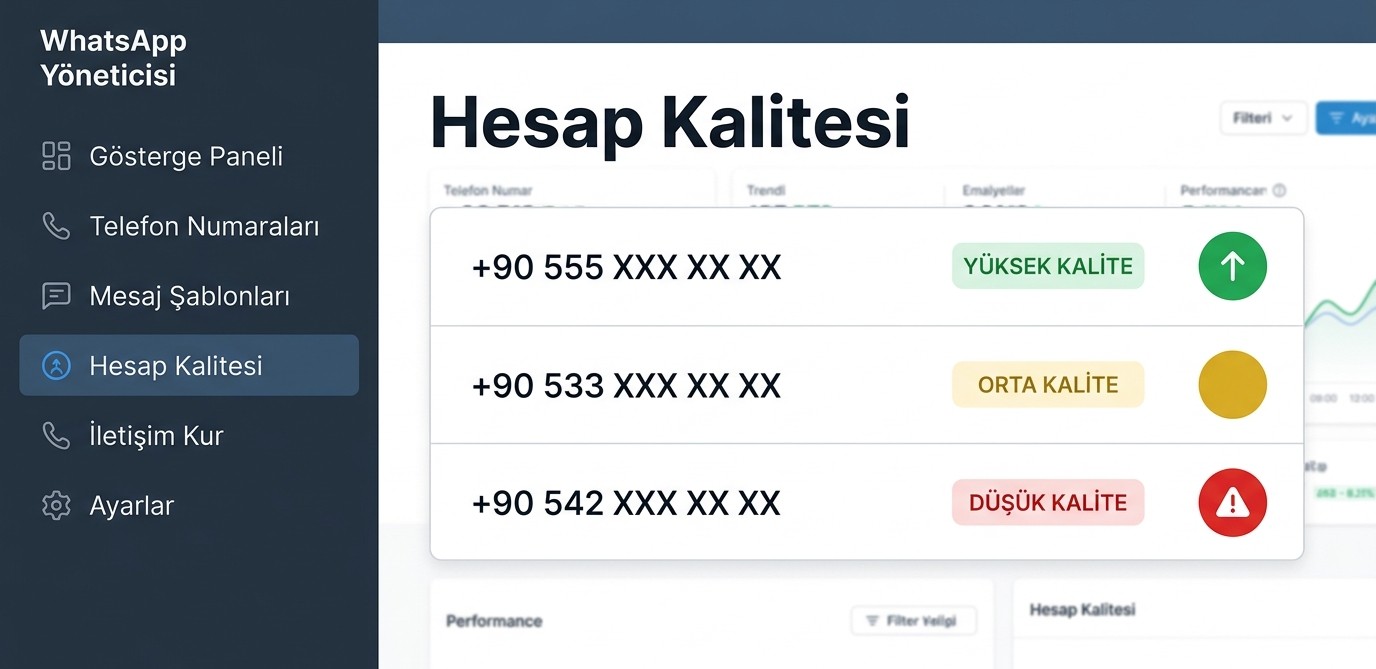
Meta monitors every API phone number using a real-time Quality Rating, displayed as High (Green), Medium (Yellow), or Low (Red) in your management panel.
Verified business accounts experience better delivery rates because recipients recognize the verified brand profile and are less likely to mark incoming messages as spam. This directly preserves your overall Quality Rating.
The Critical Role of Opt-In Permissions
The most vital compliance requirement in broadcast messaging is obtaining an explicit Opt-In—meaning the user has explicitly agreed to receive WhatsApp communications from your business. Messaging users without documented consent violates privacy regulations (such as GDPR and local data protection laws), while significantly elevating your ban risk.
7. How to Reduce Ban Risks During Bulk Messaging?
Having your WhatsApp Business API account banned can halt your customer communications overnight. Follow these core best practices to mitigate ban risks:
        [Use Verified (Opt-In) Contact Lists Only]
                              │
                              ▼
        [Audience Segmentation & Personalization]
                              │
                              ▼
       [Pace Sending Rates Gradually Over Time]
                              │
                              ▼
     [Provide an Easy Opt-Out Option (e.g., "STOP")]
                              │
                              ▼
    [Monitor Quality Rating & Block Rates Daily]
1. Send Messages Exclusively to Opted-In Users
Never use purchased, scraped, or third-party contact databases. Sending messages to users who have no prior relationship with your brand results in spam report rates exceeding 80%.
2. Maintain Clean & Updated Contact Lists
Regularly scrub inactive, disconnected, or incorrect phone numbers from your databases. High undelivered message rates degrade your number’s sender reputation.
3. Avoid Sudden Message Spikes and Spam Behavior
Even when operating via API, avoid broadcasting to hundreds of thousands of users instantaneously. Implement rate limiting to stagger campaign dispatch smoothly over time.
4. Create High-Value, Personalized Content
Avoid overly aggressive sales language. Ensure your messages deliver genuine value to the user and utilize dynamic parameters (such as recipient name, order details, or preferences) to personalize content.
5. Provide an Easy Opt-Out Mechanism
Including an explicit unsubscribe option lowers spam flags significantly. Adding a brief note like "Reply STOP to unsubscribe" encourages users to opt out within the chat rather than blocking or reporting your number to Meta.
6. Enforce Security Protocols (2FA & Domain Verification)
Ensure maximum technical protection. Accounts operating with verified domains and managers using two-factor authentication are flagged far less frequently by automated security filters.
7. Continuously Monitor Your Quality Rating
Check your Quality Rating daily within the WhatsApp Manager panel. If your rating drops to Yellow or Red, pause promotional broadcasts immediately and review your audience targeting.
8. How to Increase Messaging Limits?
Your daily messaging capability on the WhatsApp Business API is governed by Messaging Limits, which define how many unique recipients your business can message within a rolling 24-hour window.
Daily Messaging Limit Tiers
Meta structures messaging tiers as follows:
Tier Unverified: 250 unique business-initiated recipients per 24 hours.
Tier 1: 1,000 unique business-initiated recipients per 24 hours.
Tier 2: 10,000 unique business-initiated recipients per 24 hours.
Tier 3: 100,000 unique business-initiated recipients per 24 hours.
Tier 4 (Unlimited): Unlimited business-initiated conversations per 24 hours.
Automatic Tier Upgrade Logic
Upgrades occur automatically via Meta's algorithms when the following criteria are met simultaneously:
Business Verification is Complete: Unverified accounts cannot progress past Tier Unverified.
Quality Rating is High: Your number maintains a High (Green) or Medium (Yellow) Quality Rating.
Usage Threshold Met: You have messaged at least 50% of your current daily limit within the last 7 days. (e.g., if your limit is 1,000, you must message at least 500 unique users in a single day).
Upon meeting these criteria, Meta automatically escalates your limit to the next tier.
9. What to Do If Your WhatsApp Account Gets Banned?
Despite best practices, unexpected complaints or algorithmic false positives can occasionally lead to restrictions.
Ban Categories
Rate Limiting / Warning: Quality score drops trigger temporary reductions in messaging speed or limits.
Temporary Suspension: Messaging capabilities are disabled for a fixed duration (24 hours to 7 days).
Permanent Ban: Complete termination of the phone number or Business Manager account from the WhatsApp API ecosystem.
          [Account Restricted / Banned]
                        │
                        ▼
      [Log into Meta Business Manager]
                        │
                        ▼
    [Review Rejection Reason in Account Quality]
                        │
                        ▼
       [Submit an Appeal Request]
                        │
                        ▼
    [Attach Opt-In Proof & Valid Documentation]
                        │
                        ▼
       [Track Resolution Status]
Official Account Recovery Steps
If your account faces restrictions, follow this recovery process:
Identify the Cause: Navigate to Account Quality in Meta Business Manager to review specific policy violation reports.
Submit an Appeal: Click the Request Review button within the panel.
Prepare Clear Documentation: Submit a polite, factual appeal letter detailing your compliance practices. Attach opt-in consent logs, transaction receipts, or user agreements proving legitimate consent.
Contact Meta Support: Verified account managers can access direct live chat support via the Meta Business Support portal.
Avoid Counterproductive Actions: Attempting to register the same number under fresh accounts or sending repeated spam tickets will lock in permanent bans.
10. Best Practices to Prevent Account Bans
Implement these operational standards to maintain a healthy API account:
Send Welcome Messages to Confirm Consent: When new users register, send an initial message stating: "Thank you for consenting to receive updates via WhatsApp."
Segment Your Audience: Personalize messages based on demographics, purchase history, or user preferences rather than sending blanket broadcasts.
Maintain Healthy Messaging Frequency: Limit marketing broadcasts to 2–3 messages per user per week to prevent fatigue.
Categorize Message Templates Accurately: Do not submit promotional content under Utility templates to save costs; Meta penalizes miscategorized templates severely.
Respond Promptly to Inquiries: Replying within the 24-hour customer service window boosts your account health score substantially.
11. Frequently Asked Questions (FAQ)
Is Meta Business Verification mandatory?
Yes, completing verification is mandatory if you wish to scale beyond the 250-message trial limit and access higher daily messaging tiers professionally.
How long does the verification review take?
When all official documents are submitted accurately, reviews are typically completed within 24 to 72 hours.
Can I verify my Meta account without a registered business or tax ID?
No. Meta verifies legally registered commercial entities (such as LLCs, Corporations, or registered Sole Proprietorships). Official tax registration documents are required.
Can I use the API without completing verification?
Yes, but only in restricted trial mode, capped at reaching 250 unique users per day alongside stricter template approvals.
Does Business Verification guarantee immunity from bans?
No. Verification increases your account's trust score and tolerance threshold, but violating Meta's Commerce Policies or spam guidelines will still result in bans.
How do I get a WhatsApp Green Tick (Official Business Account)?
You must complete Meta Business Verification first. Once verified, you can apply for the Green Tick badge within the panel, which Meta evaluates based on brand recognition and media presence.
How can I increase my daily messaging limit?
After verifying your account, utilize at least 50% of your current daily limit with a high Quality Rating. Meta will automatically upgrade your tier.
Is Domain Verification required?
While optional for basic features, domain verification is strongly recommended as it accelerates Meta Business Verification approval.
Why does Meta reject verification requests?
Common reasons include name mismatches between submitted documents and Business Manager entries, unreadable files, address discrepancies, or using generic email addresses (like Gmail) instead of corporate domain emails.
Can a banned WhatsApp API number be restored?
If a ban was issued erroneously and you can provide documented proof of compliance (such as valid opt-in records), Meta Support can restore your account upon review.
12. Conclusion & Next Steps
Completing Meta Business Manager verification is far more than a simple technical step—it is a strategic investment that protects your brand's digital identity, builds lasting customer trust, and secures an uninterrupted communication pipeline.
To leverage the high conversion rates, automated chatbot workflows, and broadcast capabilities of the WhatsApp Business API, start by preparing your official documentation and completing your verification today.
If you want to streamline your business verification process and launch your WhatsApp Business API infrastructure without hassle, feel free to or reach our team at +90 216 232 22 82.